
| 일 | 월 | 화 | 수 | 목 | 금 | 토 |
|---|---|---|---|---|---|---|
| 1 | 2 | 3 | 4 | 5 | 6 | 7 |
| 8 | 9 | 10 | 11 | 12 | 13 | 14 |
| 15 | 16 | 17 | 18 | 19 | 20 | 21 |
| 22 | 23 | 24 | 25 | 26 | 27 | 28 |
- Jenkins
- kubernetes
- Terraform
- Python
- grafana
- k8s
- 외부 모듈
- keda
- aews vault
- aews
- outposts local cluster
- eks endpoint access
- karpenter
- storageclass
- 도커
- 국비지원교육
- aws outposts
- VPA
- AWS
- 클라우드 국비지원교육 후기
- 합격 후기
- prometheus
- aews ci/cd
- 클라우드 국비지원교육
- EKS
- 클라우드 엔지니어
- observability
- docker
- 단기 합격
- POD
- Today
- Total
모험가
AEWS 4주차 - Observability(Prometheus & Grafana) 본문
| 본 글은 가시다님이 진행하시는 AEWS(AWS EKS Workshop Study)를 참여하여 정리한 글입니다. 모르는 부분이 많아서 틀린 내용이 있다면 말씀 부탁드리겠습니다! |
프로메테우스
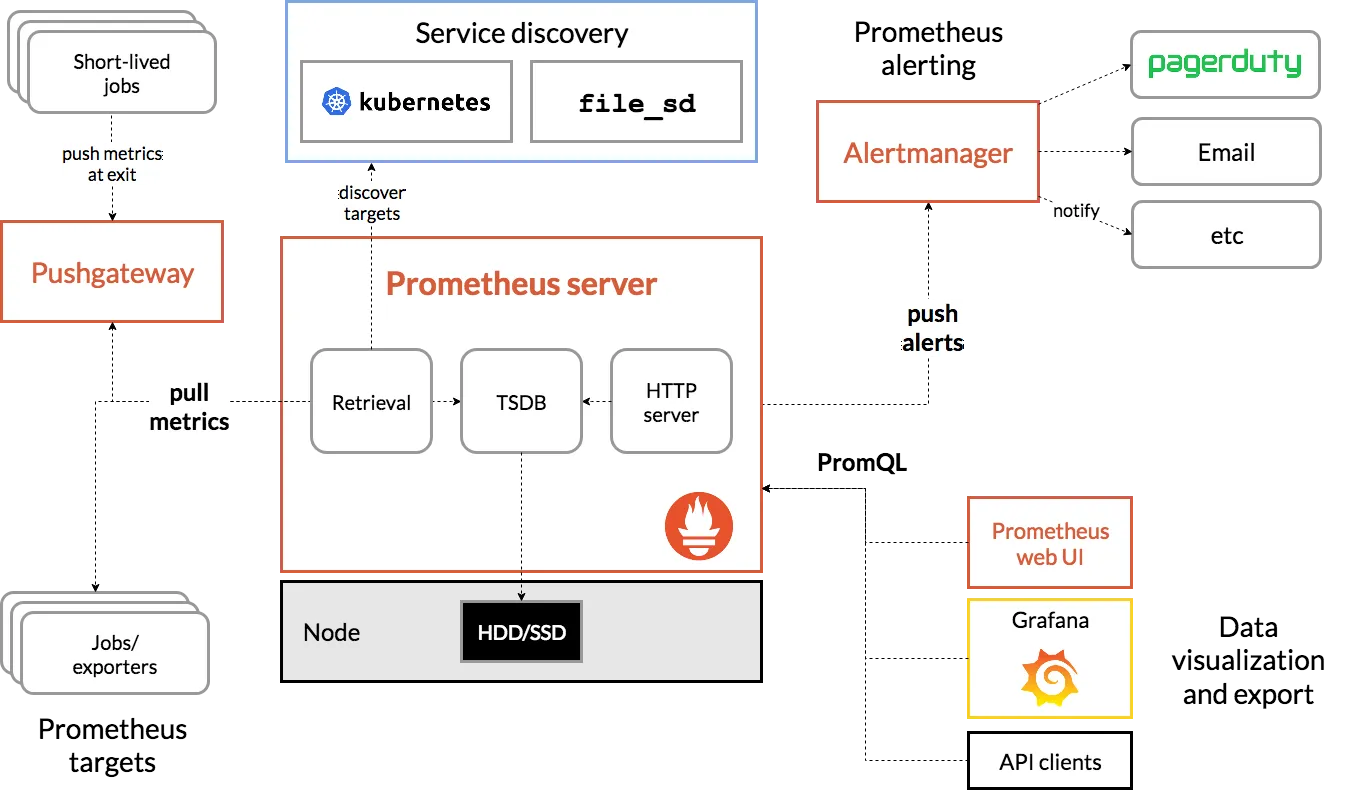
프로메테우스는 다양한 데이터 소스로부터 메트릭 데이터를 수집하고, 이를 기반으로 모니터링 및 경고 기능을 제공합니다. 주요 특징으로는 다차원 데이터 모델, 강력한 쿼리 언어, 실시간 데이터 수집, 분산 아키텍처 등이 있습니다. 프로메테우스는 Kubernetes, Docker, AWS, OpenStack 등 다양한 환경에서 사용될 수 있으며, 확장성과 유연성이 뛰어난 것으로 평가받고 있습니다.
특징으로는 시계열 데이터 베이스이며, PromQL을 사용합니다.
설치(운영 서버 직접 설치)
# 최신 버전 다운로드
wget https://github.com/prometheus/prometheus/releases/download/v3.2.0/prometheus-3.2.0.linux-amd64.tar.gz

# 압축 해제
tar -xvf prometheus-3.2.0.linux-amd64.tar.gz
cd prometheus-3.2.0.linux-amd64
ls -l

#
mv prometheus /usr/local/bin/
mv promtool /usr/local/bin/
mkdir -p /etc/prometheus /var/lib/prometheus
mv prometheus.yml /etc/prometheus/
cat /etc/prometheus/prometheus.yml

#
useradd --no-create-home --shell /sbin/nologin prometheus
chown -R prometheus:prometheus /etc/prometheus /var/lib/prometheus
chown prometheus:prometheus /usr/local/bin/prometheus /usr/local/bin/promtool

#
tee /etc/systemd/system/prometheus.service > /dev/null <<EOF
[Unit]
Description=Prometheus
Wants=network-online.target
After=network-online.target

[Service]
User=prometheus
Group=prometheus
Type=simple
ExecStart=/usr/local/bin/prometheus \
  --config.file=/etc/prometheus/prometheus.yml \
  --storage.tsdb.path=/var/lib/prometheus \
  --web.listen-address=0.0.0.0:9090

[Install]
WantedBy=multi-user.target
EOF

#
systemctl daemon-reload
systemctl enable --now prometheus
systemctl status prometheus
ss -tnlp

#
curl localhost:9090/metrics
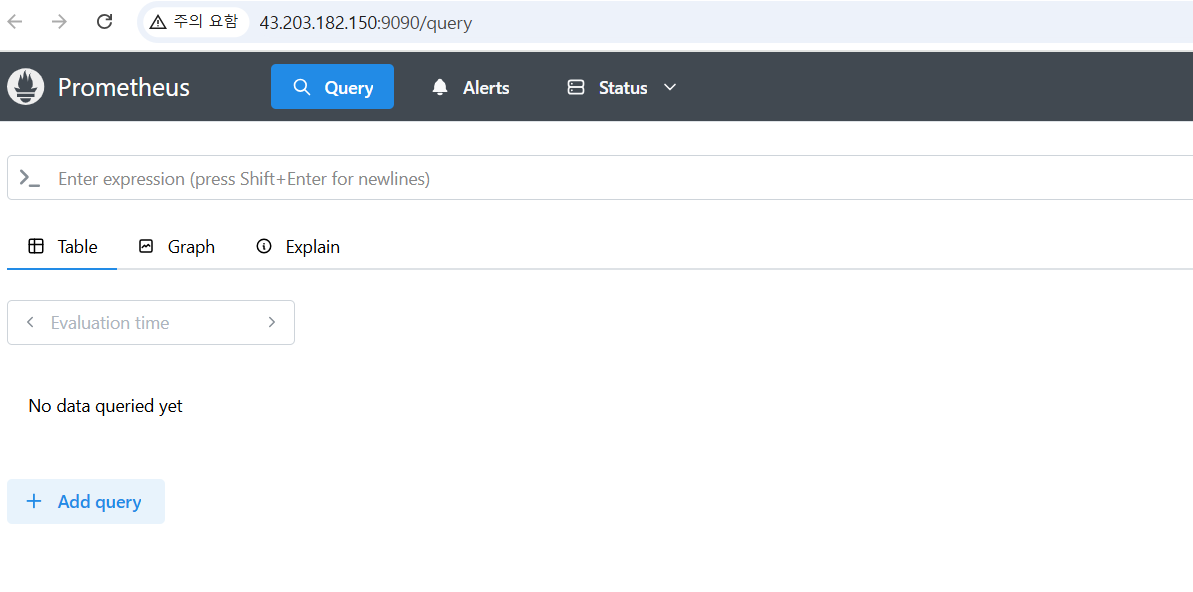
echo -e "http://$(curl -s ipinfo.io/ip):9090"
Node Export
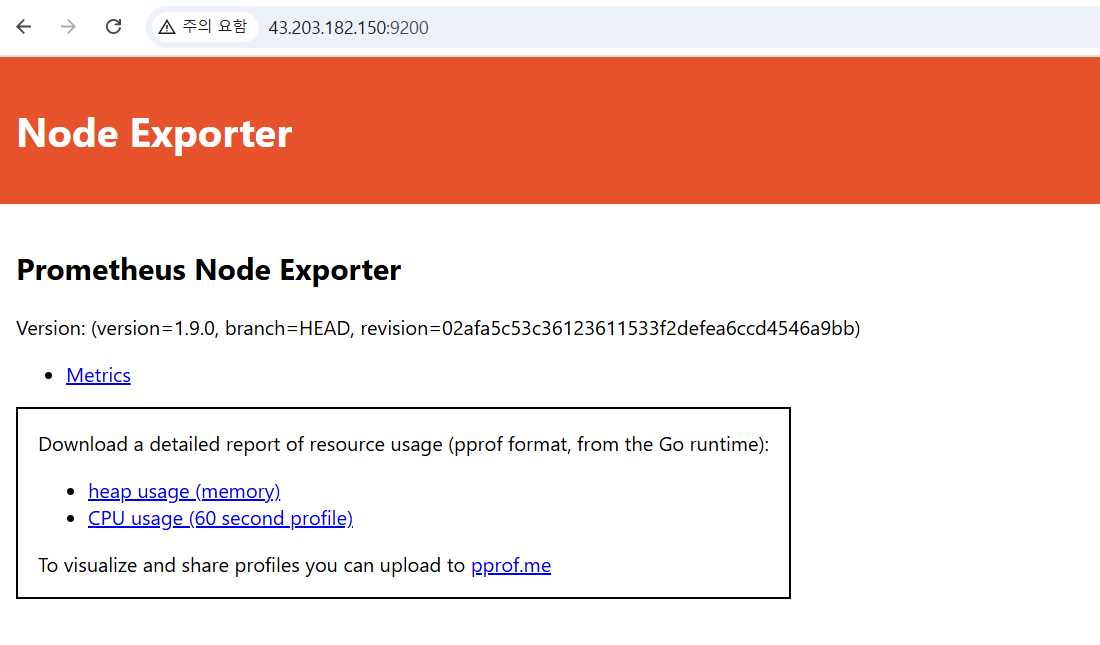
NodeExporter은 프로메테우스 모니터링 시스템과 함께 사용하기 위해 개발된 오픈소스입니다.
프로메테우스와 통합하여 node_exporter는 CPU, 메모리, 디스크, 네트워크 등 호스트 시스템의 다양한 메트릭 데이터를 수집합니다.
설치
# Node Exporter 최신 버전 다운로드
cd ~
wget https://github.com/prometheus/node_exporter/releases/download/v1.9.0/node_exporter-1.9.0.linux-amd64.tar.gz
tar xvfz node_exporter-1.9.0.linux-amd64.tar.gz
cd node_exporter-1.9.0.linux-amd64
cp node_exporter /usr/local/bin/

#
groupadd -f node_exporter
useradd -g node_exporter --no-create-home --shell /sbin/nologin node_exporter
chown node_exporter:node_exporter /usr/local/bin/node_exporter

#
tee /etc/systemd/system/node_exporter.service > /dev/null <<EOF
[Unit]
Description=Node Exporter
Documentation=https://prometheus.io/docs/guides/node-exporter/
Wants=network-online.target
After=network-online.target

[Service]
User=node_exporter
Group=node_exporter
Type=simple
Restart=on-failure
ExecStart=/usr/local/bin/node_exporter \
  --web.listen-address=:9200

[Install]
WantedBy=multi-user.target
EOF

# 데몬 실행
systemctl daemon-reload
systemctl enable --now node_exporter
systemctl status node_exporter
ss -tnlp

#
curl localhost:9200/metrics
프로메테우스에 Node Exporter 통합
# prometheus.yml 수정
cat << EOF >> /etc/prometheus/prometheus.yml

  - job_name: 'node_exporter'
    static_configs:
      - targets: ["127.0.0.1:9200"]
        labels:
          alias: 'myec2'
EOF

# prometheus 데몬 재기동
systemctl restart prometheus.service
systemctl status prometheus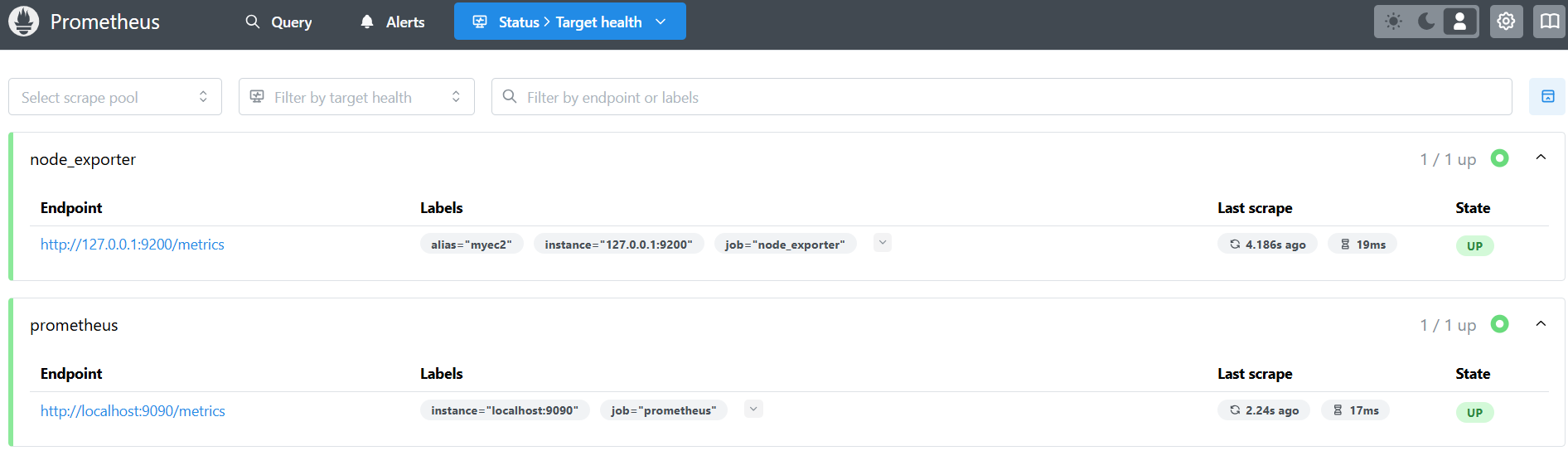
이렇게 target에 node exporter이 들어온 것을 확인할 수 있습니다.
그리고 query 에서 PromQL으로 해당 로그들을 보다 정확히 확인이 가능합니다.
# 간단한 쿼리문 1
rate(node_cpu_seconds_total{mode="system"}[1m])

# 간단한 쿼리문 2
node_filesystem_avail_bytes

# 간단한 쿼리문 3
rate(node_network_receive_bytes_total[1m])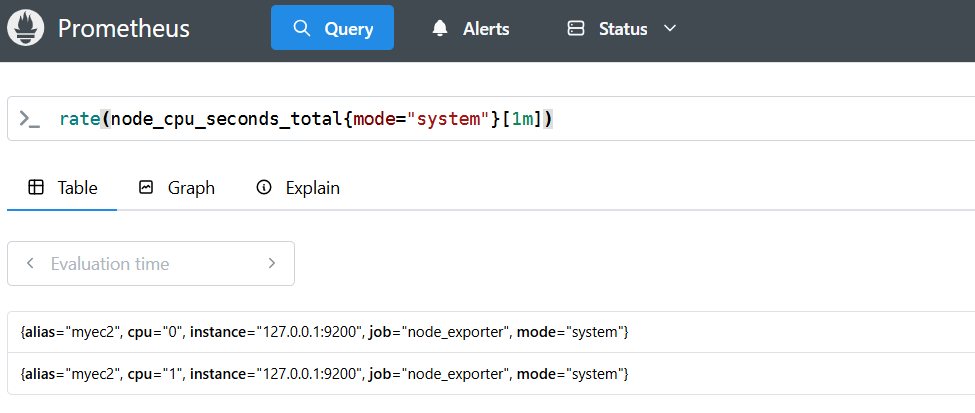
설치( 프로메테우스-스택 설치)
-> 모니터링에 필요한 여러 요소를 단일 차트(스택)으로 제공 ← 시각화(그라파나), 이벤트 메시지 정책(경고 임계값/수준)
사전 준비 : 변수값들에 대해 미리 선언해야합니다.
CERT_ARN
MyDomain
# repo 추가
helm repo add prometheus-community https://prometheus-community.github.io/helm-charts

# 파라미터 파일 생성
cat <<EOT > monitor-values.yaml
prometheus:
  prometheusSpec:
    scrapeInterval: "15s"
    evaluationInterval: "15s"
    podMonitorSelectorNilUsesHelmValues: false
    serviceMonitorSelectorNilUsesHelmValues: false
    retention: 5d
    retentionSize: "10GiB"
    storageSpec:
      volumeClaimTemplate:
        spec:
          storageClassName: gp3
          accessModes: ["ReadWriteOnce"]
          resources:
            requests:
              storage: 30Gi

  ingress:
    enabled: true
    ingressClassName: alb
    hosts:
      - prometheus.$MyDomain
    paths:
      - /*
    annotations:
      alb.ingress.kubernetes.io/scheme: internet-facing
      alb.ingress.kubernetes.io/target-type: ip
      alb.ingress.kubernetes.io/listen-ports: '[{"HTTPS":443}, {"HTTP":80}]'
      alb.ingress.kubernetes.io/certificate-arn: $CERT_ARN
      alb.ingress.kubernetes.io/success-codes: 200-399
      alb.ingress.kubernetes.io/load-balancer-name: myeks-ingress-alb
      alb.ingress.kubernetes.io/group.name: study
      alb.ingress.kubernetes.io/ssl-redirect: '443'

grafana:
  defaultDashboardsTimezone: Asia/Seoul
  adminPassword: prom-operator

  ingress:
    enabled: true
    ingressClassName: alb
    hosts:
      - grafana.$MyDomain
    paths:
      - /*
    annotations:
      alb.ingress.kubernetes.io/scheme: internet-facing
      alb.ingress.kubernetes.io/target-type: ip
      alb.ingress.kubernetes.io/listen-ports: '[{"HTTPS":443}, {"HTTP":80}]'
      alb.ingress.kubernetes.io/certificate-arn: $CERT_ARN
      alb.ingress.kubernetes.io/success-codes: 200-399
      alb.ingress.kubernetes.io/load-balancer-name: myeks-ingress-alb
      alb.ingress.kubernetes.io/group.name: study
      alb.ingress.kubernetes.io/ssl-redirect: '443'

  persistence:
    enabled: true
    type: sts
    storageClassName: "gp3"
    accessModes:
      - ReadWriteOnce
    size: 20Gi

alertmanager:
  enabled: false
defaultRules:
  create: false
kubeControllerManager:
  enabled: false
kubeEtcd:
  enabled: false
kubeScheduler:
  enabled: false
prometheus-windows-exporter:
  prometheus:
    monitor:
      enabled: false
EOT
cat monitor-values.yaml

# 배포
helm install kube-prometheus-stack prometheus-community/kube-prometheus-stack --version 69.3.1 \
-f monitor-values.yaml --create-namespace --namespace monitoring

# 확인
## alertmanager-0 : 사전에 정의한 정책 기반(예: 노드 다운, 파드 Pending 등)으로 시스템 경고 메시지를 생성 후 경보 채널(슬랙 등)로 전송
## grafana-0 : 프로메테우스는 메트릭 정보를 저장하는 용도로 사용하며, 그라파나로 시각화 처리
## prometheus-0 : 모니터링 대상이 되는 파드는 ‘exporter’라는 별도의 사이드카 형식의 파드에서 모니터링 메트릭을 노출, pull 방식으로 가져와 내부의 시계열 데이터베이스에 저장
## node-exporter : 노드익스포터는 물리 노드에 대한 자원 사용량(네트워크, 스토리지 등 전체) 정보를 메트릭 형태로 변경하여 노출
## operator : 시스템 경고 메시지 정책(prometheus rule), 애플리케이션 모니터링 대상 추가 등의 작업을 편리하게 할수 있게 CRD 지원
## kube-state-metrics : 쿠버네티스의 클러스터의 상태(kube-state)를 메트릭으로 변환하는 파드
helm list -n monitoring
kubectl get sts,ds,deploy,pod,svc,ep,ingress,pvc,pv -n monitoring
kubectl get-all -n monitoring
kubectl get prometheus,servicemonitors -n monitoring
kubectl get crd | grep monitoring
kubectl df-pv

# 프로메테우스 버전 확인
echo -e "https://prometheus.$MyDomain/api/v1/status/buildinfo"

# 프로메테우스 웹 접속
echo -e "https://prometheus.$MyDomain"

# 그라파나 웹 접속
echo -e "https://grafana.$MyDomain"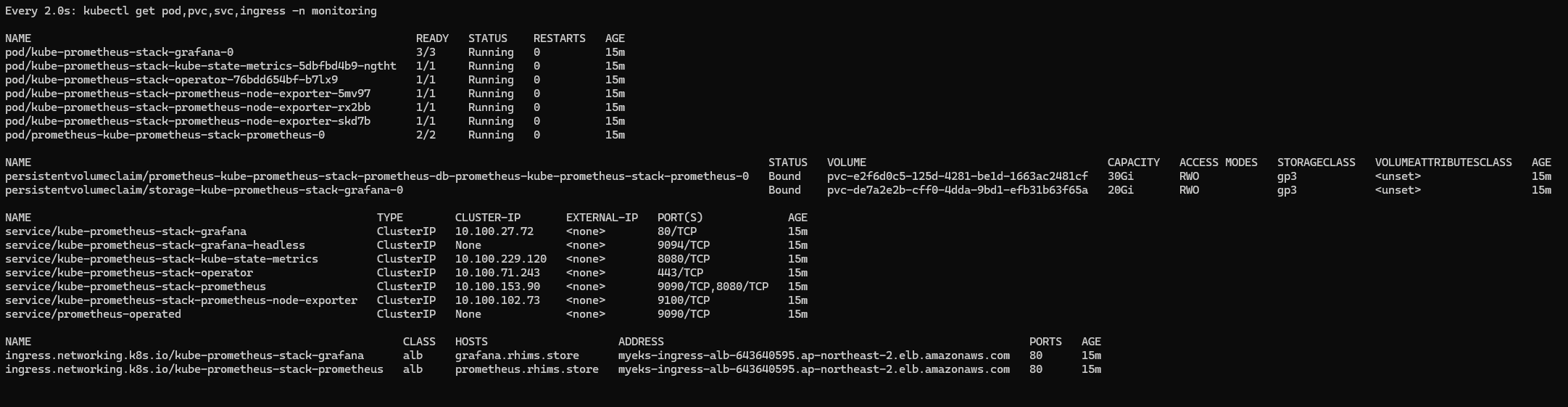
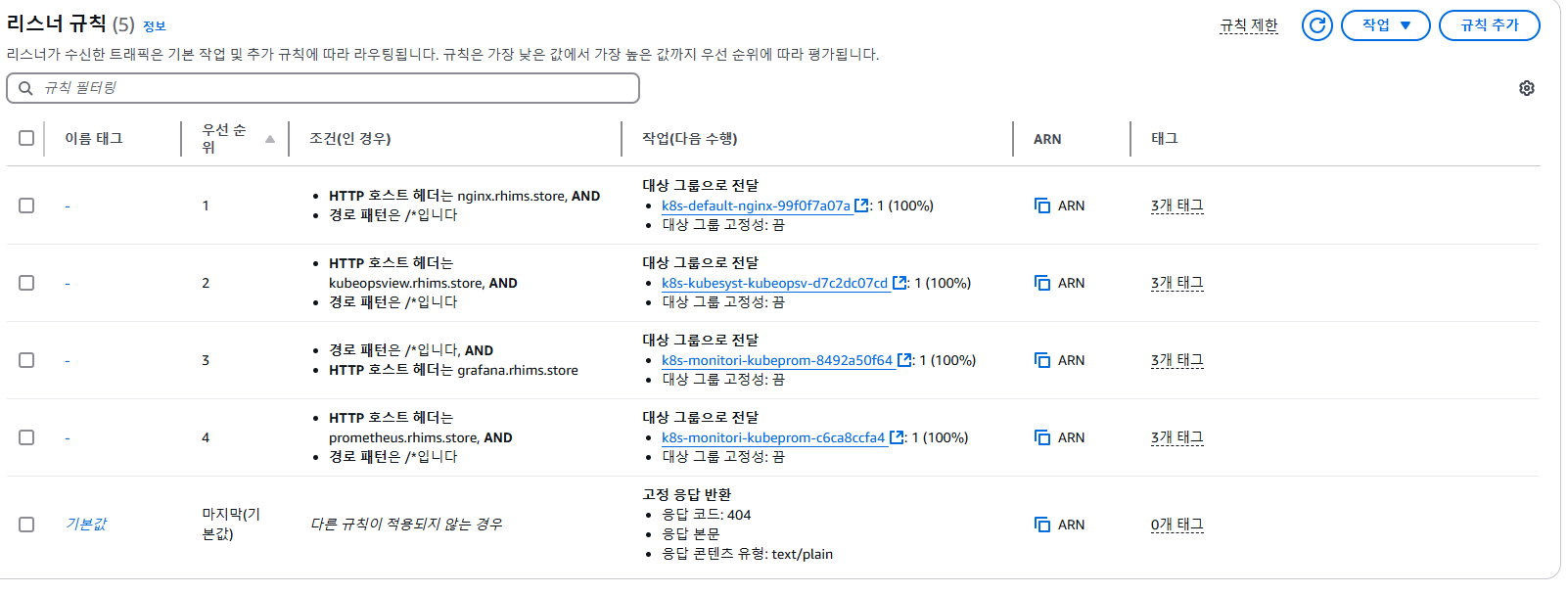
4주차 항목들은 같은 ALB에 host헤더 기반으로 서비스를 진행했습니다.
ingress에 annotation에 alb.ingress.kubernetes.io/group.name 값을 동일하게 하면 됩니다.
AWS CNI Metrics 수집을 위한 사전 설정
# PodMonitor 배포
cat <<EOF | kubectl create -f -
apiVersion: monitoring.coreos.com/v1
kind: PodMonitor
metadata:
  name: aws-cni-metrics
  namespace: kube-system
spec:
  jobLabel: k8s-app
  namespaceSelector:
    matchNames:
    - kube-system
  podMetricsEndpoints:
  - interval: 30s
    path: /metrics
    port: metrics
  selector:
    matchLabels:
      k8s-app: aws-node
EOF

# PodMonitor 확인
kubectl get podmonitor -n kube-system
kubectl get podmonitor -n kube-system aws-cni-metrics -o yaml | kubectl neat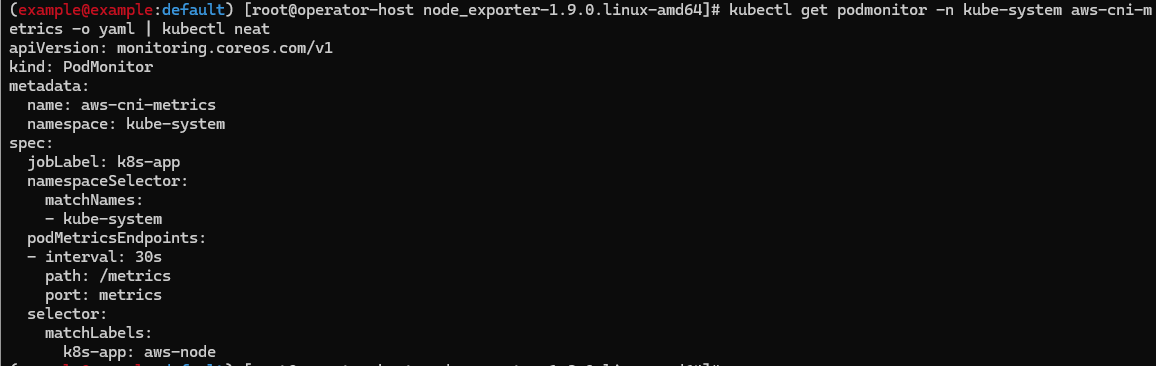
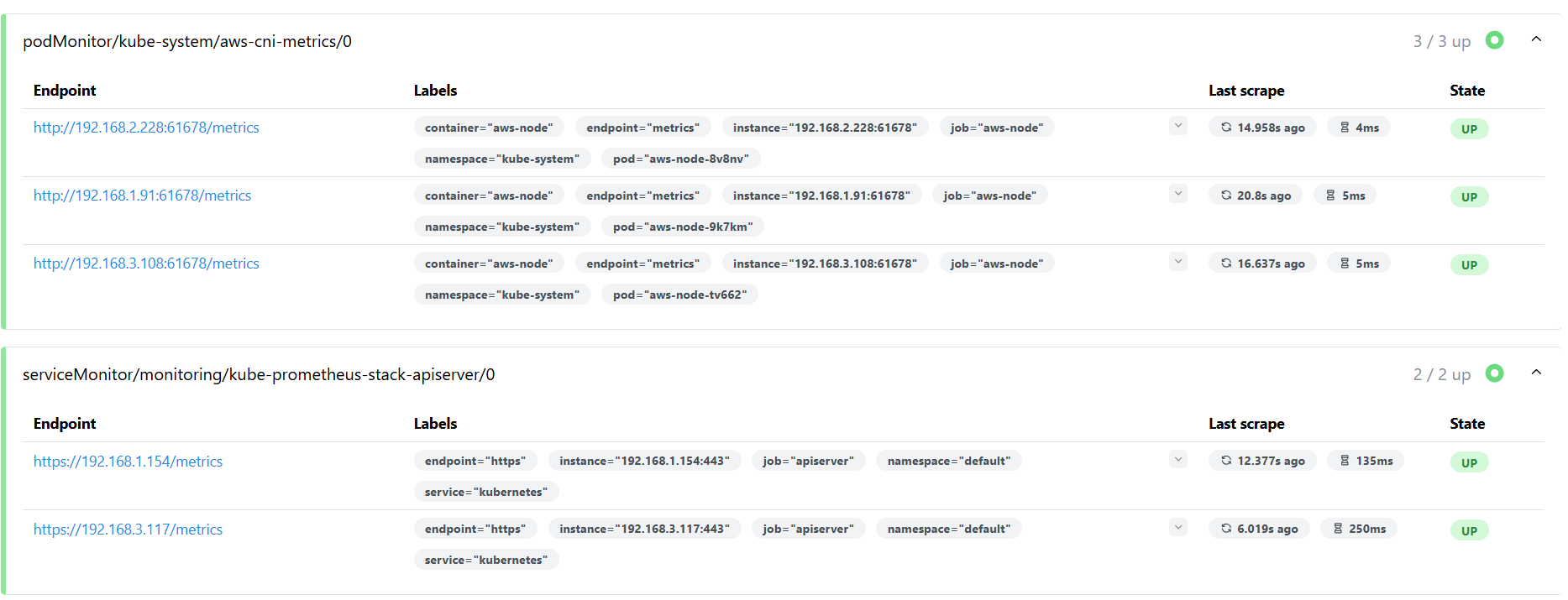
cni-metric이 들어오고 있음을 확인할 수 있습니다.
ServiceMonitor vs PodMonitor 은 어떤 차이가 있을까요?
1. ServiceMonitor는 서비스 단위로 모니터링을 수행하고, PodMonitor는 개별 Pod 단위로 모니터링을 수행합니다.
2. ServiceMonitor는 Service 리소스의 정보를 사용하고, PodMonitor는 Pod 리소스의 정보를 사용합니다.
일반적으로 서비스 수준 모니터링이 필요한 경우에는 ServiceMonitor를, 개별 Pod 단위 모니터링이 필요한 경우에는 PodMonitor를 사용하는 것이 좋습니다. 상황에 따라 두 리소스를 함께 사용할 수도 있습니다.
PromQL 사용
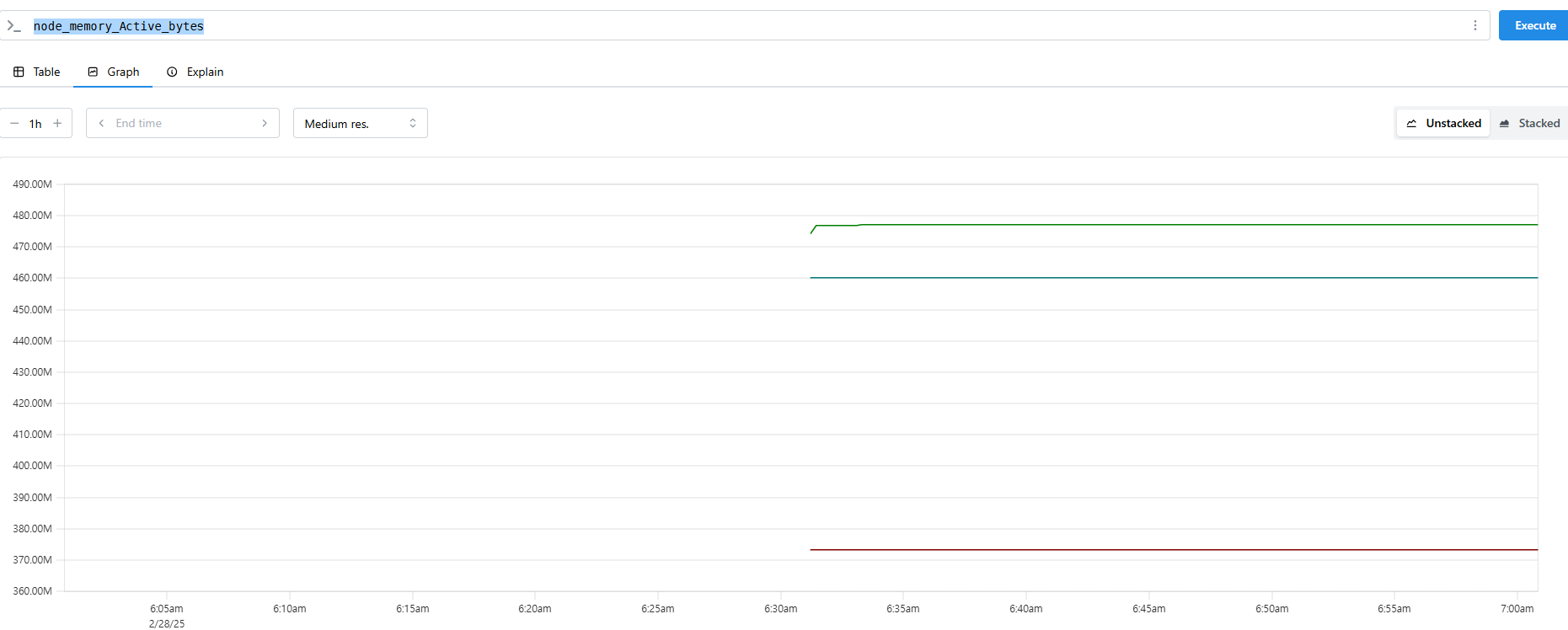
node_memory_Active_bytes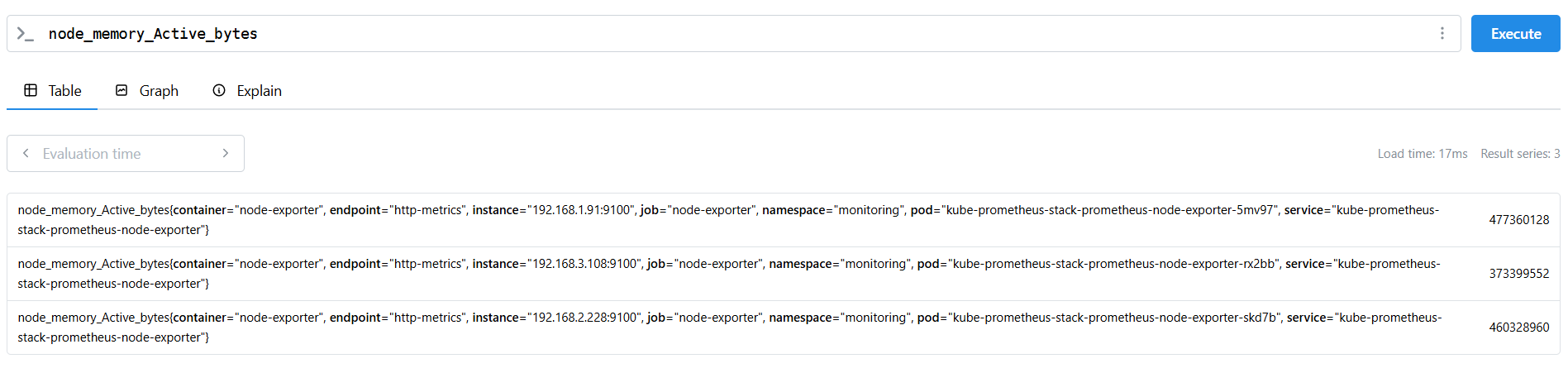
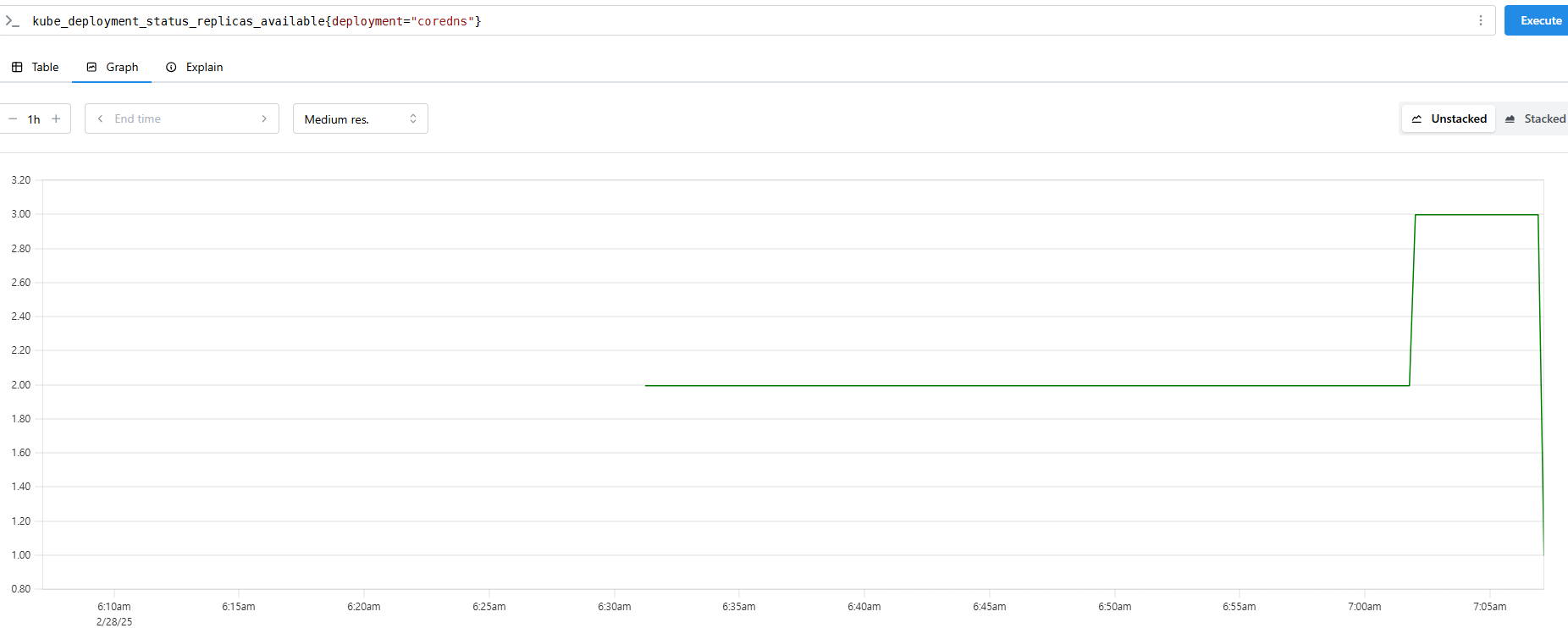
coredns의 파드 개수를 조정하면 그래프에도 잘 표기 됩니다.
15초마다 지표를 가져오게 설정되어있습니다. (바꾸실 수 있습니다.)
Grafana
그라파나는 시각화 솔루션으로 데이터 자체를 저장하지 않음
→ 현재 실습 환경에서는 데이터 소스는 프로메테우스를 사용합니다. (이외에도 다른 소스들에게서도 받을 수 있습니다.)
# ingress 확인
kubectl get ingress -n monitoring kube-prometheus-stack-grafana
kubectl describe ingress -n monitoring kube-prometheus-stack-grafana

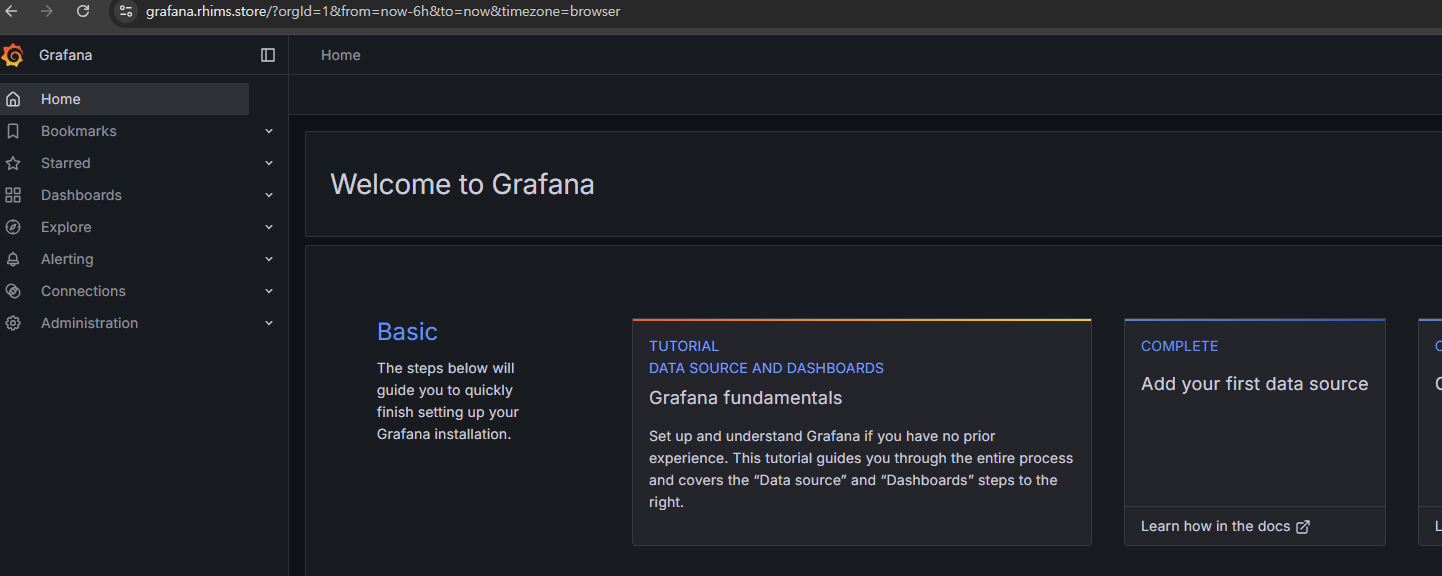
# ingress 도메인으로 웹 접속 : 기본 계정 - admin / prom-operator
echo -e "Grafana Web URL = https://grafana.$MyDomain
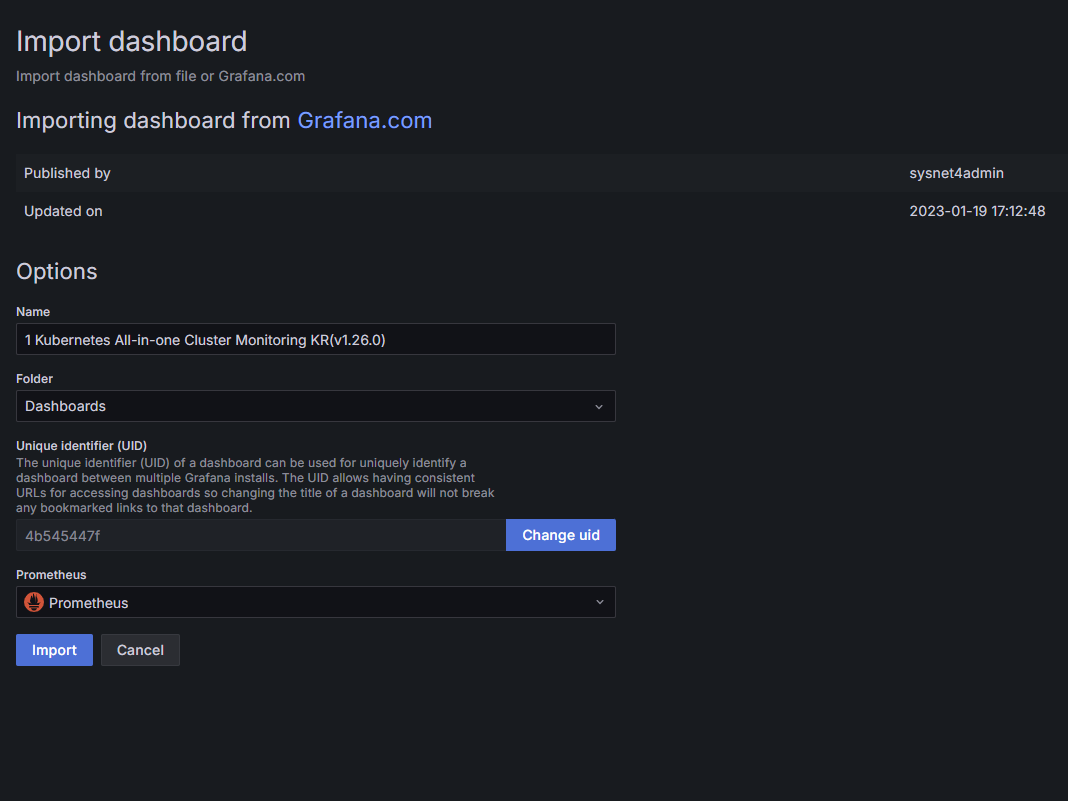
저는 실습을 대중적으로 유명한 17900을 import하여 대시보드를 확인하겠습니다.
모두 잘 나오지만 설정값이 바뀌어서 표출이 안나오는 부분이 존재합니다.
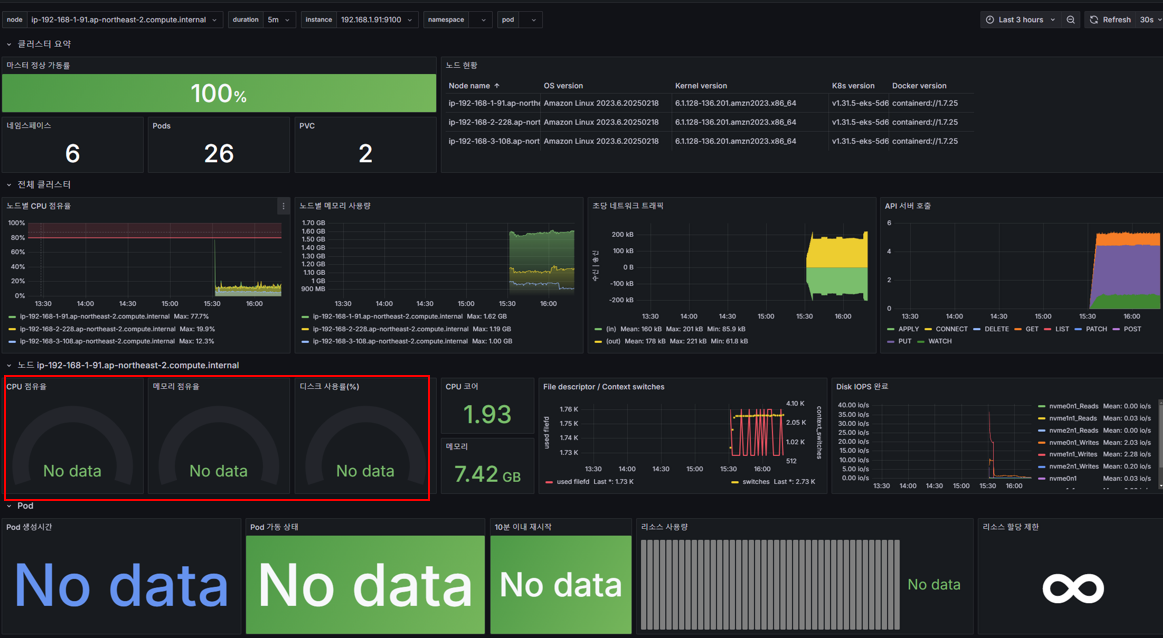
1. (CPU, Memory, Disk)을 수정하겠습니다.
CPU 점유율 패널을 Edit을 눌러서 쿼리문을 확인하면
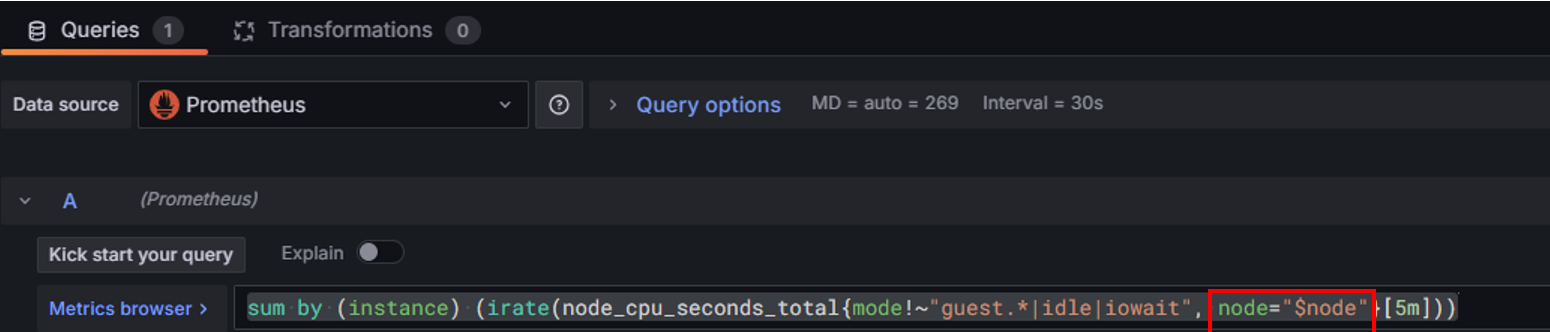
node로 작성되어 있는 부분을 instance로 변경합니다.
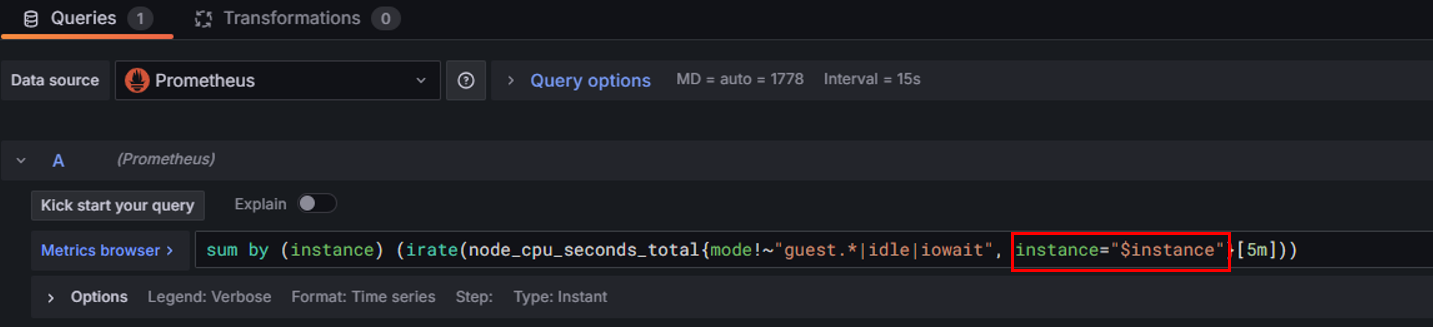
# 수정 : cpu 사용률
sum by (instance) (irate(node_cpu_seconds_total{mode!~"guest.*|idle|iowait", instance="$instance"}[5m]))
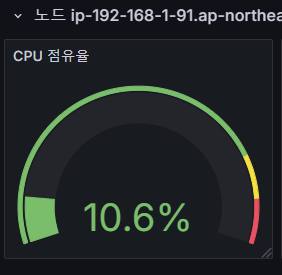
이와 동일하게 memory와 disk도 쿼리문을 수정합니다.
# 수정 : 메모리 점유율
(node_memory_MemTotal_bytes{instance="$instance"}-node_memory_MemAvailable_bytes{instance="$instance"})/node_memory_MemTotal_bytes{instance="$instance"}

# 수정 : 디스크 사용률
sum(node_filesystem_size_bytes{instance="$instance"} - node_filesystem_avail_bytes{instance="$instance"}) by (instance) / sum(node_filesystem_size_bytes{instance="$instance"}) by (instance)
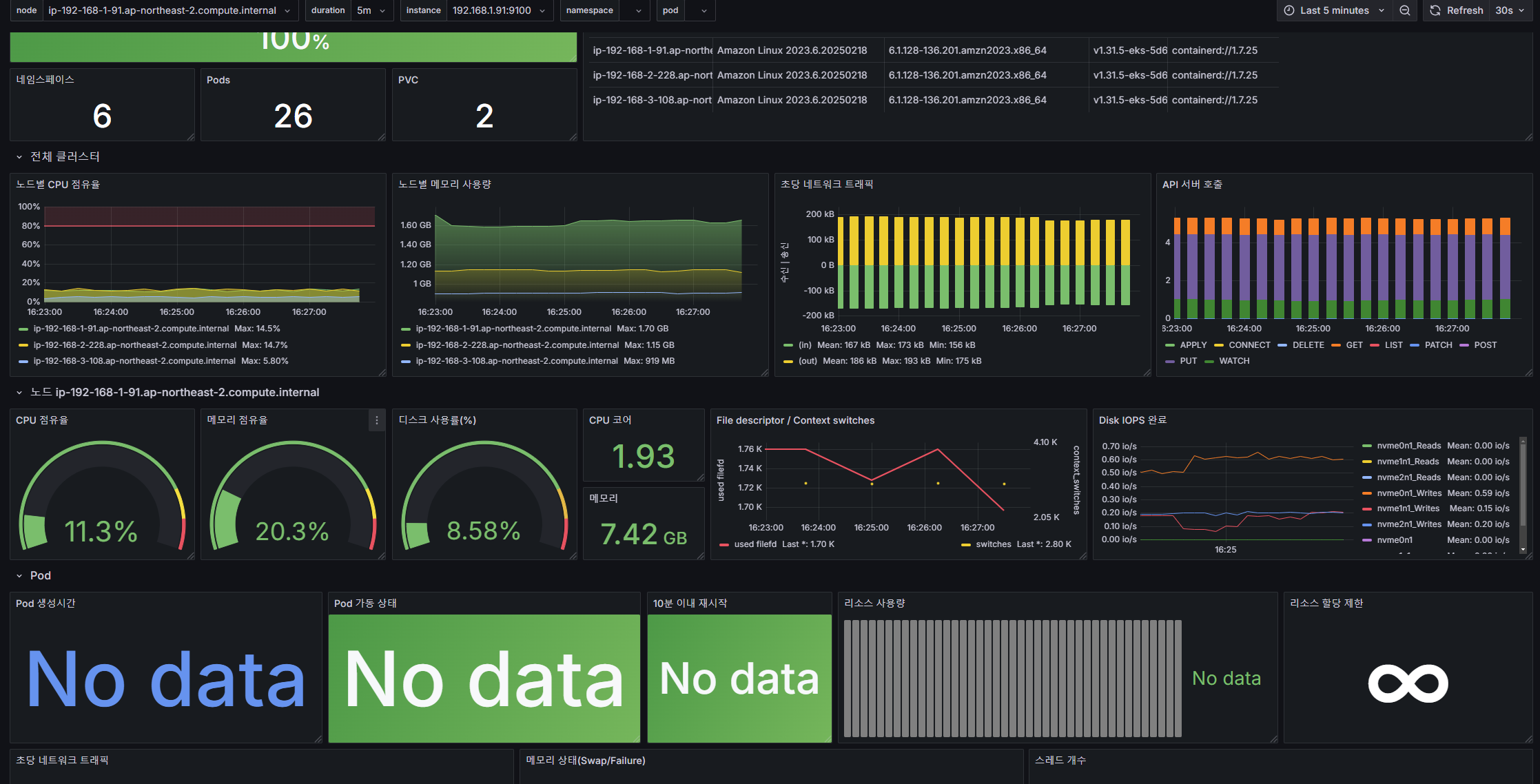
2. namespace와 파드 부분도 수정하겠습니다.
오른쪽 상단 Edit → Settings → Variables 아래 namesapce, pod 값 수정 ⇒ 수정 후 Save dashboard 클릭

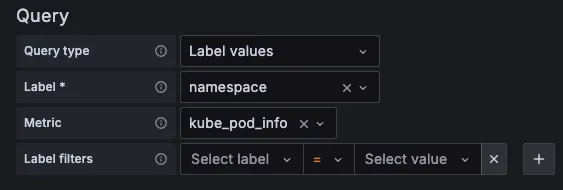
설정을 해주시면 이제 namespace와 pod를 필터를 걸어서 확인이 가능합니다.
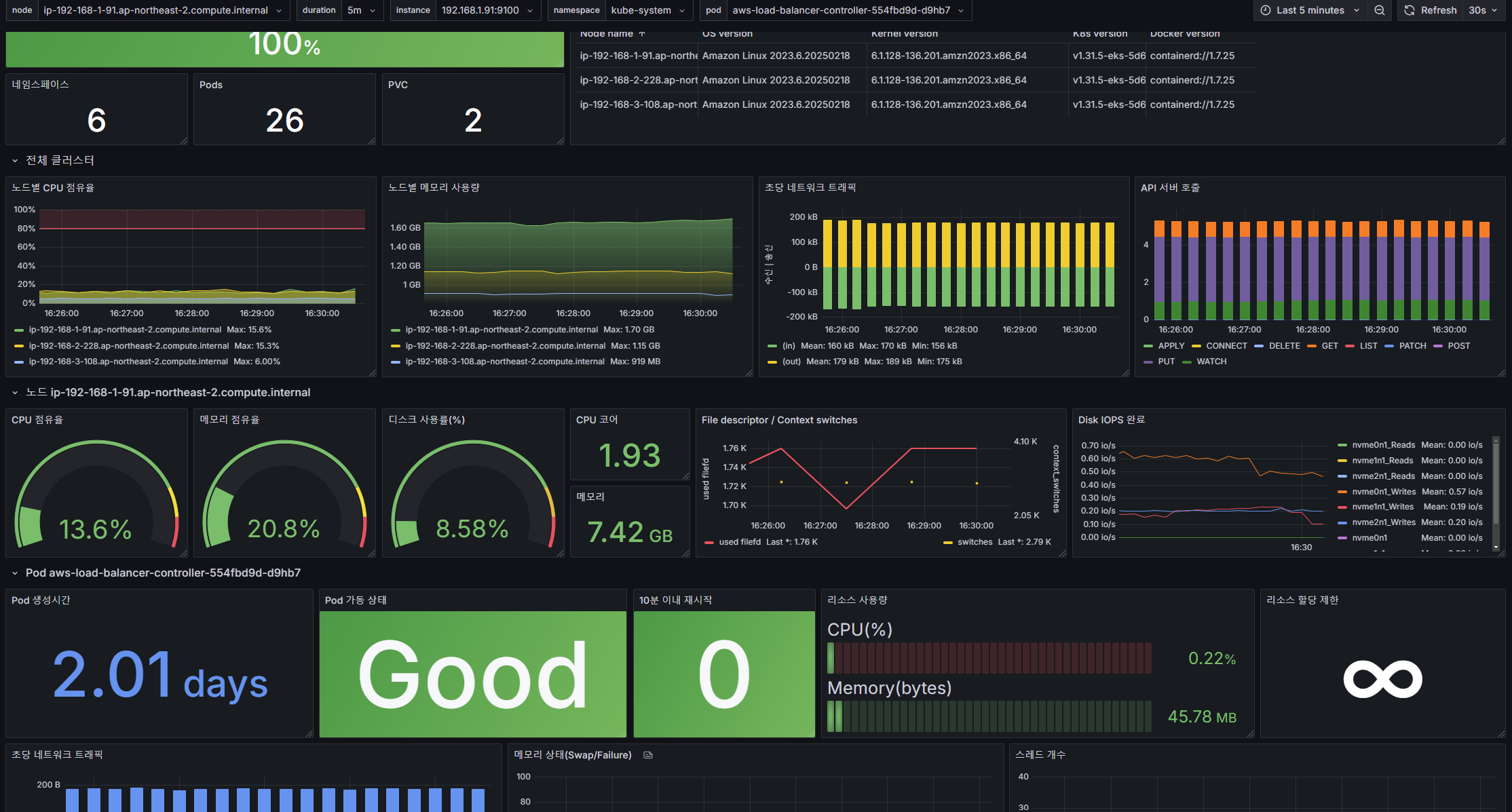
3. 리소스 할당 제한 부분도 수정하겠습니다.
동일하게 리소스 할당 제한 패널에 edit을 합니다.
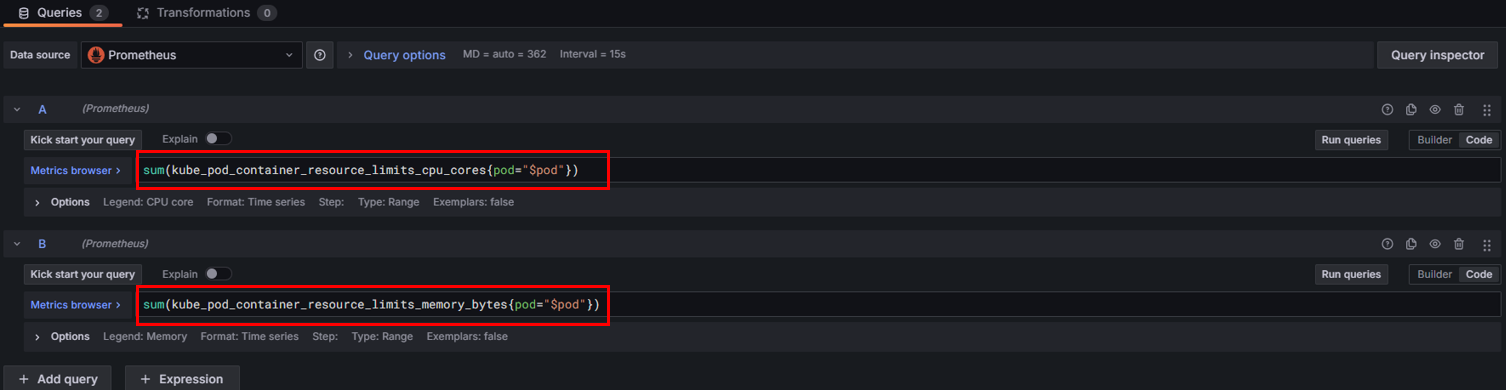
# 기존
sum(kube_pod_container_resource_limits_cpu_cores{pod="$pod"})

# 변경
sum(kube_pod_container_resource_limits{resource="cpu", pod="$pod"})
# 기존
sum(kube_pod_container_resource_limits_memory_bytes{pod="$pod"})

# 변경
sum(kube_pod_container_resource_limits{resource="memory", pod="$pod"})
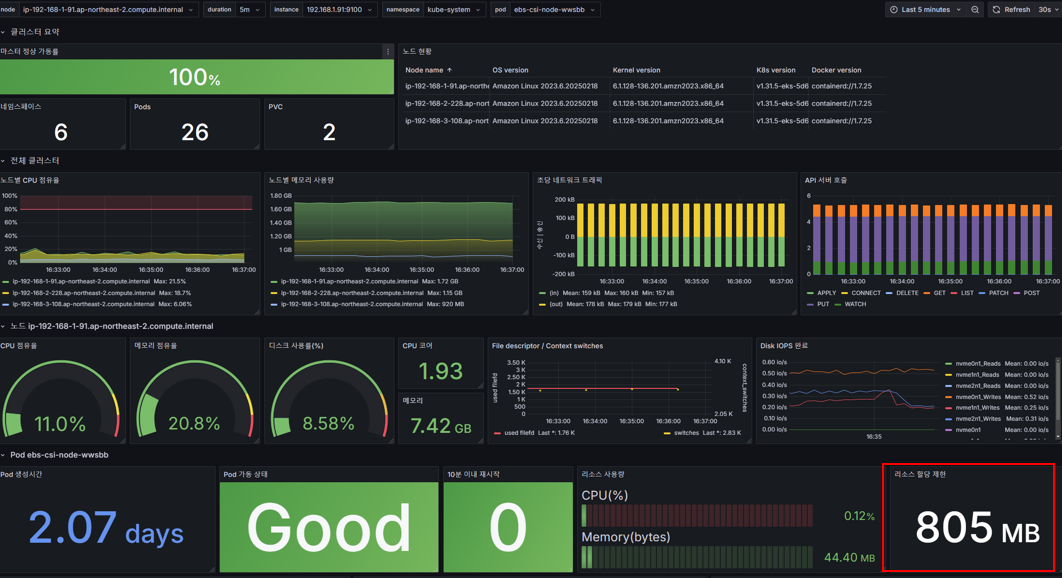
이렇게 해당 대시보드를 모두 동작하게 수정하였습니다.
'쿠버네티스 > AEWS' 카테고리의 다른 글
| AEWS 5주차 - EKS Autoscaling(HPA, VPA, KEDA - 실습) (0) | 2025.03.05 |
|---|---|
| AEWS 5주차 - EKS Autoscaling(HPA, VPA, CAS, Karpenter, KEDA - 이론) (0) | 2025.03.05 |
| AEWS 4주차 - Observability(Cloudwatch Observability, Metrics-server & kwatch) (0) | 2025.02.28 |
| AEWS 4주차 - Observability(Monitoring, EKS 컨트롤 플레인, 파드 로깅) (0) | 2025.02.27 |
| AEWS 3주차 - Storage(EFS, Spot Node Group) (1) | 2025.02.21 |


